Quick Verdict
Kapwing is a genuinely solid tool if you're a solo content creator or small team making social media videos. The auto-caption feature is genuinely excellent, better than what a lot of competitors offer, and the ease of use is real. You can jump in with zero video editing experience and produce something that looks professional in minutes. The browser-based approach means you don't need to download anything or deal with installation headaches. The free tier is useful for testing, and the pricing for solo creators at sixteen dollars a month is reasonable. Our 3.8 rating reflects that Kapwing excels at what it's designed for, which is quick, easy video editing for social media with exceptional captions. The reasons it doesn't rate higher are honest and worth knowing about. The per-member pricing gets expensive fast if you're a team. The free tier has watermarks and low resolution which makes it impractical for real publishing. Rendering can be slow, and some users report occasional glitches. The platform isn't designed for long-form content or advanced editing, so if you need that, you'll outgrow it. If you make reels, TikToks, YouTube shorts, or other short-form content and you need reliable captions, Kapwing is excellent and worth trying. If you're doing complex editing or managing a large team, look elsewhere.
At a Glance: Icon Polls Ratings
Here's how Kapwing scored across what we tested in 2026:
|
Category |
Stars |
Score |
|
Ease of Use and Interface |
★★★★★ |
4.5/5 |
|
Auto-Caption Quality |
★★★★★ |
4.5/5 |
|
Free Tier Usefulness |
★★★★☆ |
3.5/5 |
|
Pricing for Solo Creators |
★★★★☆ |
4/5 |
|
Team and Collaboration Features |
★★★★☆ |
3.5/5 |
|
Rendering Speed and Performance |
★★★☆☆ |
3/5 |
|
Advanced Editing Capabilities |
★★★☆☆ |
3/5 |
|
Overall |
★★★★☆ |
3.8/5 |
What Is Kapwing?
Kapwing is a browser-based video and content editor. You don't download anything. You go to the website, sign up, and start editing videos right there in your browser. It's designed for people who want to create and edit videos quickly, especially for social media, without dealing with complex desktop software like Adobe Premiere or Final Cut Pro. The app supports video editing, image editing, GIF creation, and has AI features that help with things like auto-captioning and background removal.
It's used by millions of creators monthly for everything from TikToks to YouTube shorts to Instagram reels to educational content. The company positions it as the tool for teams and solo creators who want to work together on video projects without the overhead of expensive software or complicated setup.
Signing Up and Downloading
Signing up is straightforward. You go to Kapwing, enter your email, create a password, and you're in. No download required. Everything happens in your browser. You can use it on any computer, any operating system, as long as you have a web browser. You don't need a beefy computer to run it like you do with desktop editing software.
That's genuinely convenient. You open it, do your edits, export your video, and close it. No installation process to deal with. No software updates you have to manage. It just works from wherever you are.
The free version is available to try without a credit card if you want, though signing in is recommended so you can save your projects. The free tier has restrictions but it's enough to test whether Kapwing works for you before paying.
Captions and Auto-Subtitles
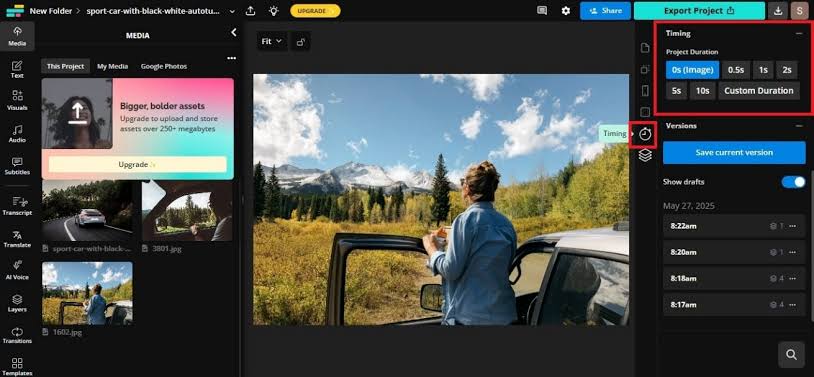
This is where Kapwing genuinely shines. The auto-caption feature is excellent. You upload a video, click to generate captions, and Kapwing transcribes it and adds the captions to your timeline. The accuracy is strong, especially for clear English audio. It works in over seventy languages. What makes it even better is the customization. You get over one hundred preset caption styles, and you can control fonts, colors, shadows, borders, animation timing, literally everything. The trendy word-by-word highlight animations popular on reels and TikToks work great.
For creators who rely on captions for engagement, which is basically everyone making social content now, this feature alone can justify getting Kapwing. It saves hours of manual captioning work. You can also export captions as SRT files to use elsewhere, like YouTube, which adds flexibility.
The honest caveat is that for languages other than English or for heavy accents, the accuracy varies. And if you generate captions in multiple languages for translation, each translation uses AI credits that count against your monthly allowance. But for the main use case of English-language captions on social videos, it's genuinely great.
Free Tier and Paid Plans
The free tier gives you access to the editor, templates, basic features, and you can create projects. What you get limits on free is the export. You're capped at 720 pixel resolution, exports are limited to 1 minute, and the Kapwing watermark appears on everything you export. There's also a file upload size limit. For testing the platform, the free tier is fine. For anything you actually want to publish, the watermark alone disqualifies it.
The paid plans start at the Pro level. Pro costs sixteen dollars a month if you pay annually, or twenty-four dollars a month if you pay monthly. You get watermark-free exports, 1080 pixel and 4K resolution, no export length limits, bigger file uploads, and full AI features. For a solo creator, that's reasonable pricing. The Business plan adds team features and costs more but is still per-member, which gets expensive for bigger teams.
|
Plan |
Price |
What You Get |
|
Free |
$0 |
Basic editor, templates, project creation. Exports limited to 720p, 1 minute max, includes watermark. Good for testing. |
|
Pro |
$16/month annual |
Watermark-free, 1080p and 4K export, no export limits, bigger uploads, full AI features, captions. Solo creators and small teams. |
|
Business |
Higher per-person |
Everything in Pro plus advanced team collaboration, workspace controls, custom branding. For agencies and larger teams. |
Pricing as we found it in 2026. All paid plans are billed per member, so team costs scale with size. Annual billing saves about 33% compared to monthly. Monthly billing for Pro is $24/month per person.
Is the Pricing Fair?
For solo creators, yeah, it's fair. Sixteen dollars a month for unlimited exports in high quality without watermarks is reasonable. Compared to Premiere which costs way more, it's a bargain. The per-member pricing for teams is the real consideration. If you're a five-person team on Pro, that's eighty dollars a month just to get everyone access. That adds up. For teams, you should calculate what you'll actually pay before committing.
The App and Interface
The Kapwing interface is clean and drag-and-drop. You don't need video editing experience to figure it out. New users can jump in and understand what to do without much explanation. That's genuinely valuable because a lot of video editing software assumes you know what you're doing and doesn't hold your hand.
Everything works in your browser, so it's responsive and snappy for basic edits. For short videos under fifteen minutes, editing is fast. The timeline is easy to navigate. You can resize videos for different platforms with a click. You can add text, music, effects, all straightforward. The AI tools like background removal and smart cut that automatically removes silence from videos work and save time.
The honest performance caveat is that rendering and exporting can be slower than you might want, especially for longer videos or complex edits. And some users report occasional glitches or bugs. Nothing catastrophic, but enough that you'll notice sometimes.
Team Collaboration
Kapwing has team collaboration built in. You can share a project link with teammates, and multiple people can edit the same timeline in real-time. You can leave timestamped comments. For small teams working together on video content, this is useful and saves a lot of back-and-forth emailing files around. The shared workspace keeps templates and assets organized.
For larger teams or agencies, the Business plan adds more controls and permission management. For a marketing team of three to five people, the Pro plan collaboration is probably enough.
Alternatives Worth Knowing About
There are other options if Kapwing doesn't fit. CapCut is free with no watermarks, though it's more desktop-focused. Canva Pro is cheaper at fifteen dollars a month for more than just video, though video editing isn't its main strength. VEED is another browser-based editor similar to Kapwing. Adobe Premiere is powerful but expensive and has a steep learning curve. Descript is excellent if you edit video based on transcripts, especially for podcasts and long-form content. For specific needs, different tools make sense.
User Experience Overall
If you're making short-form social content and you want a tool that's easy to use and makes captions fast and good-looking, Kapwing delivers. The experience is genuinely smooth for that use case. For longer videos, complex editing, or if you're a large team, the experience becomes less smooth and the pricing gets expensive.
Users consistently praise the ease of use and the caption quality. They appreciate being able to edit in a browser without installing software. They like the templates and quick edits. The complaints are mostly about speed on rendering, occasional bugs, the free tier watermark and limits, and the per-member pricing for teams.
The sweet spot is solo creators or small teams making reels, shorts, and quick social videos. Outside that, Kapwing is fine but not the obvious choice.
Pros and Cons
What Kapwing Does Well
Auto-captions are excellent with strong accuracy, 70+ languages, and over 100 caption styles to customize
Drag-and-drop interface requires zero learning curve, anyone can use it
Browser-based means no installation, works on any device with a browser
Fast for quick edits, good for short-form social content
Free tier is useful for testing before paying
Real-time team collaboration for shared projects
AI features like background removal and smart cut save time
Pricing for solo creators at $16/month is reasonable
Integrates with common platforms and has templates available
Where Kapwing Falls Short
Per-member pricing gets expensive fast for teams
Free tier has watermarks and is limited to 720p resolution
Rendering and exporting can be slow, especially for longer videos
Occasional glitches and bugs reported by users
Not suitable for long-form content or advanced editing needs
Limited advanced features compared to desktop software
Cannot do complex color grading, multi-camera editing, or professional audio mixing
Mobile app experience is limited compared to desktop browser
Frequently Asked Questions About Kapwing (2026)
1. What is Kapwing and what is it used for?
Kapwing is a browser-based video editor for creating, editing, and exporting videos without downloading software. You access it through your web browser. It's used by creators and marketing teams to edit social media videos like reels, shorts, and TikToks quickly, add captions, resize videos for different platforms, and collaborate on video projects. It's designed for ease of use rather than advanced professional editing. You don't need video editing experience to use it.
2. Is Kapwing free and do I need to download it?
Kapwing is free to try but has a limited free tier. You don't need to download anything. Everything runs in your web browser. The free version lets you create and edit projects but exports are limited to 720p, one minute maximum, and have a Kapwing watermark. To remove watermarks, export in higher resolution, and access full features, you need the Pro plan at sixteen dollars a month on annual billing. The free tier is good for testing but not practical for publishing real content because of the watermark.
3. How good are Kapwing's auto-captions?
Kapwing's auto-captions are one of its best features. The transcription accuracy is strong, especially for clear English audio, consistently in the high-90 percent range. Captions are generated quickly. You get over one hundred preset caption styles and full control over fonts, colors, animations, shadows, borders, everything. You can even do word-by-word highlight animations popular on TikTok and Instagram reels. Captions can be exported as SRT files for use on YouTube or elsewhere. This feature alone is worth trying Kapwing if captions matter to your content.
4. How much does Kapwing cost for teams?
Kapwing uses per-member pricing, so costs scale with team size. Pro is sixteen dollars per month per person if you pay annually. So a three-person team pays forty-eight dollars a month. A five-person team pays eighty dollars monthly. For teams, this gets expensive compared to tools with flat-rate pricing. You should calculate what you'll actually pay for your team size before committing. Business plan adds more team features but costs even more per person.
5. Can I use Kapwing offline?
No, Kapwing is browser-based and requires an internet connection to use. There's no offline mode or desktop app. You need to be online to edit, upload files, and export. If you work in places without reliable internet, this is a limitation. For most creators working from home or office, this isn't a problem, but it's worth knowing.
6. Is Kapwing good for long-form video editing?
Not really. Kapwing is built for short-form content, especially social media clips under fifteen minutes. For longer videos, the rendering gets slow. For podcast editing, detailed color grading, or professional long-form content, you'd want something like Descript or Adobe Premiere. Kapwing's sweet spot is quick, easy edits of short clips with great captions.
7. What are the best Kapwing alternatives?
CapCut is free with no watermarks but more desktop-focused. Canva Pro is cheaper at fifteen dollars a month but video editing isn't its main strength. VEED is similar to Kapwing, also browser-based. Descript is better if you edit based on transcripts or make podcasts. Adobe Premiere is powerful but expensive and complex. For social video, CapCut is the main free alternative. For captions, Descript is strong. Choose based on your specific needs.
8. Does Kapwing have team collaboration features?
Yes, Kapwing has real-time collaboration. You can share a project link with team members and multiple people can edit the timeline at the same time. You can leave timestamped comments on projects. Shared workspaces keep templates and assets organized. For small teams, this works well. The Business plan adds more advanced team controls and permission management. For solo creators, collaboration isn't as relevant, but for marketing teams it's a genuine benefit.
9. Why is Kapwing slow at rendering?
Kapwing is browser-based, which means it relies on your internet connection and browser processing power rather than your computer's full capabilities. Rendering happens on Kapwing's servers. For short videos it's fine, but for longer videos or complex edits with many effects, rendering can take noticeably longer than desktop software. Some users report waiting several minutes for exports. It's not a dealbreaker for short-form content, but it's a limitation worth knowing about.
10. Is Kapwing worth it in 2026?
If you're a solo creator making short-form social content and you want excellent captions and easy editing, Kapwing is worth trying free first. If you like it and need to remove watermarks, Pro at sixteen dollars a month is reasonable for one person. If you're a team, calculate what it'll actually cost before committing since per-member pricing adds up. If you need advanced editing or long-form content, look elsewhere. For the specific use case of quick, easy social video editing with great captions, Kapwing is very good. The 3.8 rating reflects that this is a solid tool for its purpose with honest limitations outside that purpose.
Icon polls Verdict
Kapwing earns a 3.8 out of 5. That rating means it's genuinely excellent for what it's designed for, which is quick, easy video editing for social media with exceptional auto-captions. The ease of use is real, the captions are legitimately better than many competitors, the browser-based approach is convenient, and the pricing for solo creators is fair.
The reasons it doesn't rate higher are honest. The free tier has watermarks and low resolution which make it impractical for real publishing. The per-member pricing gets expensive for teams. Rendering can be slow for longer videos. Some users report occasional glitches. It's not designed for advanced editing, long-form content, or complex projects. So if you need those things, Kapwing isn't the answer.
The practical recommendation is try it free. If you make reels, shorts, TikToks, or other short-form content and you need reliable captions, Kapwing is excellent. Download it, test it, see if it works for your workflow. For the right user, it genuinely delivers. For someone with different needs, you'll outgrow it. The 3.8 is fair because it's a very good tool for its specific purpose with real limitations outside that scope.