Quick Verdict
Trello remains one of the easiest project management tools to understand in 2026. Its board, list, and card system is visual, flexible, and quick enough for personal planning, content calendars, small business operations, school work, and team projects. A new user can create a board and begin organising tasks without sitting through a long setup process. That simplicity is still Trello's biggest strength.
Our 3.8 out of 5 rating reflects a product that does the basics very well but becomes less convincing when work grows complicated. The free plan is generous for individuals and small teams, while paid plans add unlimited boards, larger files, advanced checklists, custom fields, multiple views, and stronger administration. Trello can feel cluttered when a board has too many cards, and reporting is lighter than what larger project teams may expect. It is a strong choice for visual task management, but not a complete replacement for every planning, documentation, and resource management tool.
At a Glance: Icon Polls Ratings
Here is how Trello scored across the areas we evaluated in 2026:
|
Category |
Stars |
Score |
|
Ease of Use |
★★★★★ |
4.5/5 |
|
Boards and Card Management |
★★★★☆ |
4.2/5 |
|
Free Plan Value |
★★★★☆ |
4.1/5 |
|
Mobile and Desktop Apps |
★★★★☆ |
3.9/5 |
|
Automation and Integrations |
★★★★☆ |
3.8/5 |
|
Reporting and Advanced Planning |
★★★☆☆ |
3.2/5 |
|
Account and Workspace Controls |
★★★★☆ |
3.7/5 |
|
Overall |
★★★★☆ |
3.8/5 |
What Is Trello?
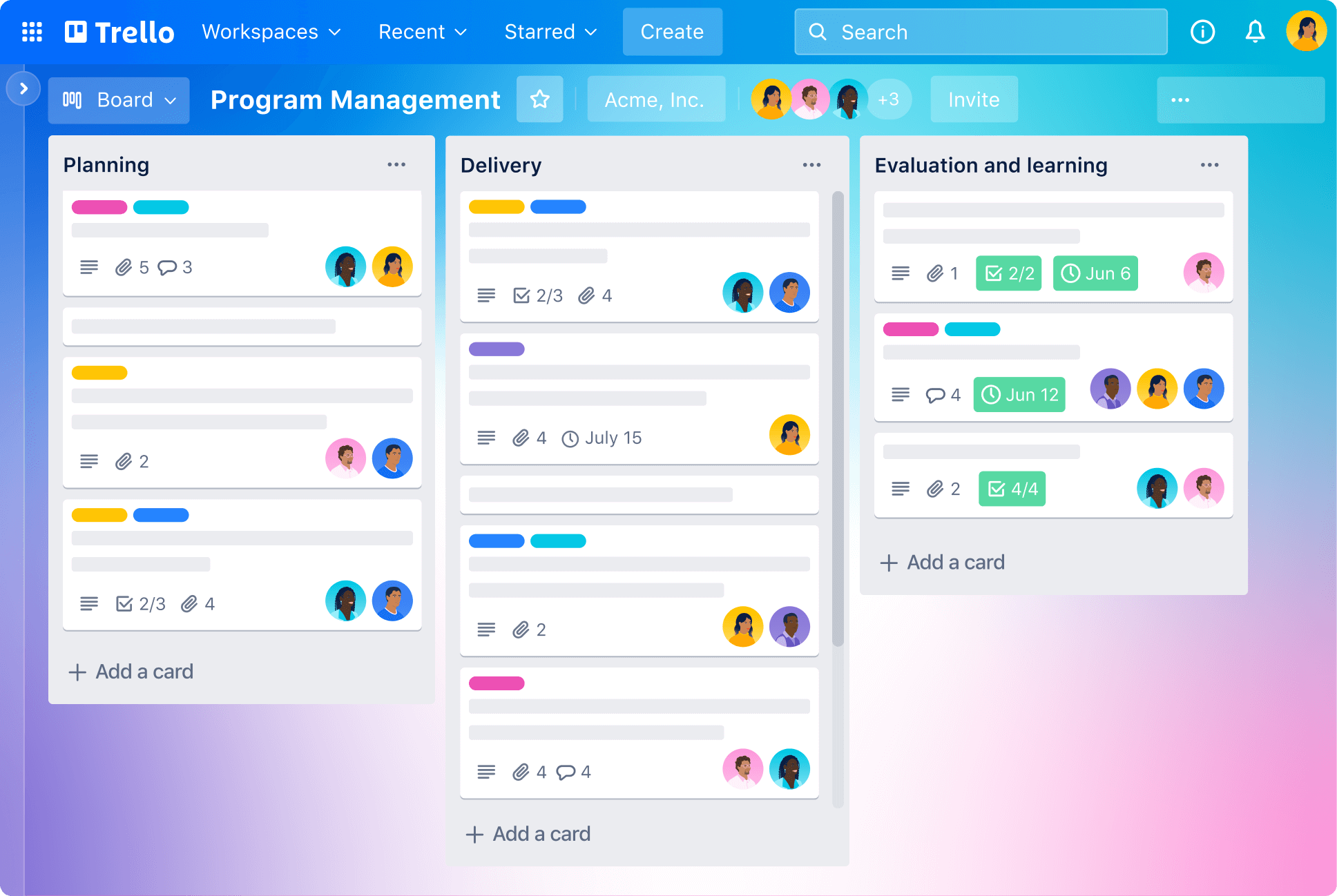
Trello is a visual work management platform owned by Atlassian. It organises work through boards, lists, and cards. A board represents a project or area of responsibility, lists represent stages or categories, and cards hold the actual tasks, ideas, deadlines, files, checklists, comments, and assigned members.
The structure is deliberately simple. A sales team might use lists such as New Lead, Contacted, Negotiation, and Closed. A content team might use Ideas, Writing, Editing, Scheduled, and Published. Cards can be dragged from one list to another, giving everyone a quick view of progress. Trello also supports Power-Ups, automation, templates, Inbox, Planner, calendar connections, and integrations with other workplace tools.
Trello App
The Trello app is available on mobile and desktop, and it keeps most of the familiar board experience found in the browser. On Android and iPhone, users can create cards, move tasks, comment, upload files, check notifications, and review assigned work. The mobile app is especially useful for quick updates, capturing ideas, and checking deadlines away from a computer.
Trello also provides dedicated desktop apps for Windows and macOS. The desktop version places Trello in its own window and supports native notifications, which helps people who do not want important boards buried among browser tabs. The desktop apps still require an active internet connection and should not be treated as fully offline software.
The app experience is generally smooth, but very large boards are easier to manage on a wider screen. On a phone, long lists and detailed card activity can require more scrolling. For daily task checks, the mobile app works well. For setting up complex boards, editing many cards, or managing permissions, the browser or desktop version is more comfortable.
Trello Login
Trello login now runs through an Atlassian account. Users can sign in with an email address and password or use an available connected sign-in method such as Google. Company-managed accounts may also use single sign-on, depending on the organisation's security settings.
Most login problems come from using the wrong email address, forgetting which sign-in method created the account, browser cookie restrictions, or an organisation administrator deactivating a managed profile. Password recovery requires access to the email linked to the account. Keeping that address current is important because it is the main way Trello confirms account ownership.
People who use Trello for client work should avoid sharing one login among several users. Separate accounts make activity records clearer and reduce the risk of losing access when a password changes. Board membership and Workspace permissions are safer than passing one account around.
Is Trello Free in 2026?
Yes. Trello has a free plan that is useful for individuals and smaller teams. A free Workspace can have up to 10 open boards and up to 10 collaborators. It also includes unlimited Power-Ups, a 10 MB limit for each file attachment, 250 automation runs per month, custom backgrounds, and card stickers.
The free version is enough for personal planning, a small editorial calendar, household tasks, job applications, simple client tracking, and lightweight team projects. The main restrictions appear when a team needs more boards, larger attachments, advanced checklists, custom fields, stronger admin controls, or more automation. Another point to understand is that all members of a free Workspace have admin rights, which may not suit a growing company that needs tighter control.
Trello Pricing in 2026
Trello offers Free, Standard, Premium, and Enterprise plans. Standard and Premium are billed per Workspace member and qualifying multi-board guest. A single-board guest on a paid Workspace is generally not charged, which can be useful when inviting a client to only one project. Annual billing costs less over a year than monthly billing.
|
Plan |
Typical Price |
Best For |
|
Free |
$0 |
Individuals and small teams with up to 10 boards and 10 collaborators |
|
Standard |
$5 per user monthly when billed annually, or $6 monthly |
Teams needing unlimited boards, custom fields and larger files |
|
Premium |
$10 per user monthly when billed annually, or $12.50 monthly |
Teams needing more views, administration and advanced project oversight |
|
Enterprise |
Custom, volume-based pricing |
Large organisations needing centralised security and controls |
Prices can vary by billing route, location, taxes, number of users, and future plan changes. Workspace owners should check the final upgrade screen before paying. The important billing detail is that upgrading one Workspace does not automatically upgrade every other Workspace on the same account. A company with members spread across several paid Workspaces can accidentally pay for the same people more than once.
Trello Download
Trello can be used without installing anything through a modern web browser. Mobile users can download the app from the Apple App Store or Google Play, while Windows and Mac users can install the official desktop version from their operating system's app store. The downloads are free, but the features available after login depend on the Workspace plan.
Using official stores is the safest option. Unofficial installers and modified mobile packages are unnecessary because the genuine app is already free to download. Users should also remember that the desktop app requires internet access. Mobile use may allow limited access to previously loaded content, but reliable syncing and collaboration depend on a connection.
Trello Boards Explained
A Trello board is the main workspace where a project is organised. Each board contains lists, and each list contains cards. Lists can represent progress stages, departments, priorities, dates, or any structure that suits the project. Cards can be moved between lists by dragging them, making the board easy to read at a glance.
Cards are more powerful than they first appear. A card can include a description, members, due dates, labels, attachments, checklists, comments, links, and activity history. Paid plans add features such as advanced checklists and custom fields, while Power-Ups connect boards with calendars, cloud storage, communication tools, and other services.
Good board design matters. A board with clear list names and a manageable number of active cards is easy to follow. A board with hundreds of old tasks, too many labels, and no archiving routine becomes tiring. Trello works best when teams agree on what each list means, who owns each card, and when completed work should be archived.
Trello Account and Workspace Management
A Trello account is linked to an Atlassian account and can belong to multiple Workspaces. Workspaces hold boards and members, while board permissions decide who can view or edit individual projects. This separation is useful for freelancers, agencies, and employees who work with several groups from one login.
Account owners should keep recovery information current, use two-step verification where available, and review connected applications from time to time. Workspace administrators should remove people who no longer need access and avoid making confidential boards public. On paid plans, billing should also be checked for multi-board guests because they can count as paid users.
Deleting an account or losing access to the linked email can create serious problems, especially when the user owns important boards. Businesses should avoid leaving critical projects under only one person's control. At least one additional trusted administrator should understand the Workspace structure and permissions.
Trello User Experience
Trello remains pleasant because it makes task movement feel natural. Dragging a card from Doing to Done gives a clear sense of progress, and the board view reduces the need to open several menus before understanding what is happening. Templates also make it easy to start a content plan, sprint board, event checklist, or personal tracker.
The newer Inbox and Planner tools improve personal organisation. Inbox gives users a place to capture tasks before deciding which board they belong to. Planner can show calendar events beside Trello work, helping users reserve time for cards rather than only setting due dates. Automation can move cards, assign members, create recurring actions, and send reports when chosen conditions are met.
The weakness appears when teams try to make Trello handle everything. Long discussions inside cards are harder to follow than proper documents. Portfolio reporting, workload planning, budgets, dependencies, and detailed analytics may require extra tools or higher plans. Trello is at its best when it remains a clear visual control centre rather than a crowded storage space for every business process.
Pros and Cons
What Works Well
Very easy for new users to understand
Flexible boards suit personal, creative, and business workflows
Free plan is useful for small teams and individual projects
Mobile, desktop, and browser access keep work available across devices
Cards support dates, members, files, checklists, comments, and labels
Power-Ups connect Trello with many other workplace tools
Automation reduces repetitive card movement and reminders
Templates help users build useful boards quickly
Inbox and Planner improve personal task capture and scheduling
What Needs Improvement
Large boards become crowded and difficult to scan
Advanced reporting and resource planning are limited
Free Workspaces give every member administrator rights
Useful business features are divided across paid plan levels
Billing can become confusing with several Workspaces and multi-board guests
Desktop apps still require an active internet connection
Important information can become buried in card comments and activity
Teams need regular archiving and board maintenance to avoid clutter
Frequently Asked Questions About Trello (2026)
Trello is used to organise tasks, projects, ideas, schedules, and team workflows through visual boards, lists, and cards. It can support personal planning, content calendars, sales pipelines, event preparation, software work, and many other processes.
2. Is Trello free to use?Yes. The free plan supports up to 10 open boards and 10 collaborators in a Workspace, with unlimited Power-Ups, 250 monthly automation runs, and file attachments up to 10 MB each.
3. How do I log in to Trello?Go to Trello or open the app and sign in through the Atlassian account connected to your profile. You can use your email and password or an available connected sign-in method. Managed company accounts may use single sign-on.
4. Can I download Trello on my phone?Yes. Trello is available for Android and iPhone through their official app stores. The mobile app can create and move cards, add comments, upload files, manage due dates, and receive notifications.
5. Is there a Trello desktop app?Yes. Trello offers desktop apps for supported Windows and macOS computers. They provide a separate app window and native notifications, but they still require an internet connection.
6. What is a Trello board?A Trello board is a visual project space made up of lists and cards. Lists usually represent stages or categories, while cards represent tasks, ideas, records, or pieces of work.
7. How many boards can I have on Trello Free?A free Workspace can have up to 10 open boards. Standard, Premium, and Enterprise plans provide unlimited boards within the upgraded Workspace.
8. Can Trello be used offline?Trello is mainly an online service. Mobile apps may show some content that has already loaded, but dependable editing, syncing, automation, and collaboration require internet access. The desktop apps do not support offline syncing.
9. Can I use Trello for personal tasks?Yes. Trello works well for personal goals, shopping lists, job searches, study planning, travel preparation, home projects, and weekly task management. One person can use a private board without inviting a team.
10. How do I recover my Trello account?Use Atlassian's password reset process and enter the email connected to the account. If the account was created through Google, signing in through the same Google profile may restore access. Recovery normally requires access to the linked email address.
11. Are Trello boards private?Boards can be private, visible to a Workspace, or public, depending on the selected settings and plan permissions. Users should check visibility before storing confidential client, employee, or business information.
12. Is Trello suitable for large companies?Trello can work for large organisations, especially when teams prefer visual workflows. Enterprise features improve security and administration, but companies needing deep portfolio reporting, resource planning, and complex dependencies may use Trello alongside other Atlassian or specialist tools.
Icon polls Verdict
Trello earns 3.8 out of 5 in the ICON POLLS 2026 review. It remains one of the clearest ways to turn a project into a visual workflow. The free plan is genuinely useful, the apps are accessible, and boards can adapt to almost any simple process. For individuals, small teams, content creators, agencies, and departments that value clarity, Trello is easy to recommend.
The score falls below four because Trello becomes less comfortable as work grows more complicated. Crowded boards require discipline, reporting is not especially deep, and paid Workspace billing needs careful management. It can organise a project very well, but it does not automatically provide the documentation, budgeting, workload planning, or portfolio control that larger operations may require.
Our practical recommendation is to begin with one free board and a simple three-list workflow such as To Do, Doing, and Done. Add labels, due dates, and automation only after the basic process is working. Upgrade when the limits on boards, collaborators, attachments, fields, or views are creating a real problem rather than paying for features the team may not use.