Quick Verdict
Photopea remains one of the most capable free image editors that can run inside a browser. It opens PSD files, supports layers, masks, smart objects, vector shapes, typography, filters, and many of the tools people expect from desktop editing software. The biggest attraction is simple: a user can open the site, load a file, and begin working without installing a large program or paying before trying the main features.
Our 3.5 out of 5 rating reflects a product that offers unusual value, but also comes with compromises. Photopea is powerful, fast on a good computer, and familiar to anyone who has used professional editing software. At the same time, the interface can feel crowded on small screens, advertisements interrupt the free experience, AI tools have usage limits, and performance depends heavily on the browser and device. It is excellent for quick edits, PSD work, social graphics, mock-ups, and emergency design tasks. It is less comfortable for people who want a simple beginner editor or a fully polished desktop workflow.
At a Glance: Icon Polls Ratings
Here is how Photopea scored across the areas we evaluated in 2026:
|
Category |
Stars |
Score |
|
Editing Tools |
★★★★☆ |
4.2/5 |
|
PSD and File Compatibility |
★★★★☆ |
4.3/5 |
|
Free Plan Value |
★★★★☆ |
4.4/5 |
|
AI Features |
★★★☆☆ |
3.4/5 |
|
Ease of Use |
★★★☆☆ |
3.1/5 |
|
Mobile Experience |
★★★☆☆ |
2.8/5 |
|
Performance and Stability |
★★★☆☆ |
3.3/5 |
|
Overall |
★★★★☆ |
3.5/5 |
What Is Photopea?
Photopea is an advanced online image editor created for raster and vector work. It runs in a web browser and can handle simple jobs such as cropping, resizing, removing a background, or adding text. It can also handle more demanding work involving layers, masks, blending modes, selections, smart objects, RAW files, animation, and web graphics.
The editor is especially popular because it can open and save PSD files. It also works with formats such as JPG, PNG, SVG, PDF, AI, XD, Sketch, XCF, and several RAW formats. Files are processed on the user’s device rather than being uploaded to Photopea for ordinary editing. This is useful for privacy, although users still need to save their work before closing the tab because an unsaved project can be lost.
Photopea App
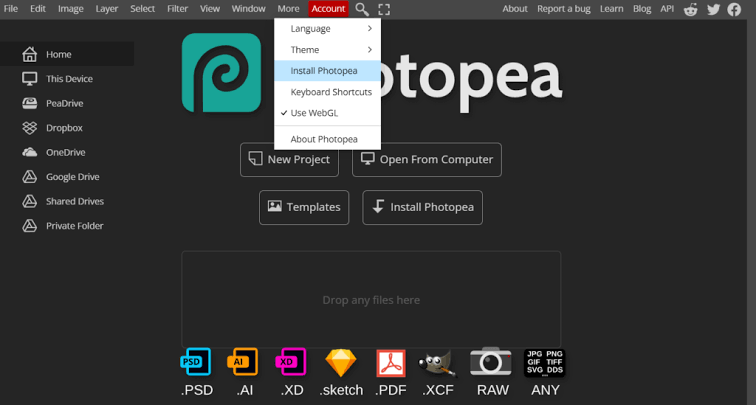
Photopea does not work like a traditional app that must be downloaded from a large installer. The main version runs through a browser on Windows, macOS, Linux, Chromebook, tablets, and phones. Users can also install it as a progressive web app from a supported browser. This places an icon on the device and opens Photopea in a cleaner window with less browser clutter.
The installed version is still powered by the browser, so it does not become a separate native editing program. Browser support, available memory, hardware acceleration, and extensions can still affect how it behaves. On a laptop or desktop with a mouse, keyboard, and enough RAM, the experience is much better than on a small phone screen. The mobile version can complete quick edits, but detailed layer work is tiring.
Photopea AI
Photopea includes AI-assisted tools for tasks that used to require careful manual selections. These include background removal, Magic Replace, generative filling, and other features that can create or replace parts of an image. The tools are useful for product photos, social posts, portrait cleanup, and filling an empty area after changing the canvas size.
The results are not perfect every time. Busy hair, transparent objects, hands, text, and unusual lighting can still confuse an AI tool. Generated areas may look soft or inconsistent with the original image. Free and Premium accounts also have different AI allowances, and heavy users may run out of monthly credits. Photopea allows certain Premium users to connect an external AI service key after their included allowance has been used, but that adds another account and separate cost.
In our testing approach, Photopea AI is best used as a first pass. A background can be removed quickly, then improved with a mask. A replaced object can save time, but edges, shadows, and perspective should be checked before the image is published.
Photopea Download and Installation
There is no need to download a large Photopea installer. Open Photopea in a supported browser and begin editing. People who prefer an app-like shortcut can select the install option from the More menu when the browser supports progressive web apps. The shortcut can open Photopea in a reduced browser window and may provide better access to certain keyboard shortcuts.
Users should be careful with unofficial Photopea downloads and copied apps. A random APK, cracked Premium file, or third-party installer can create security problems. The safest route is the official browser editor or the install option offered inside the editor itself. Work can be saved to the device, exported in common formats, or connected to selected cloud storage services when the user chooses to grant access.
Is Photopea Free?
Yes. Photopea can be used for free, and the free version includes the main editing tools. Users can open and save files, work with PSD documents, use layers, export images, and complete professional-looking projects without paying. The free version is supported by advertising, which takes up part of the screen and can feel distracting during long sessions.
Photopea Premium removes advertising and includes a larger allowance for AI use. Premium is sold for a fixed period rather than forcing every user into an automatic long-term commitment. Account options can include a single-user plan, team access, distributor access, and a self-hosted edition for organisations. Exact prices can change, so users should check the Account window before paying.
Photopea Login
A login is not required for basic editing. A user can open Photopea, load a file, complete the work, and save it without creating an account. Logging in becomes useful when someone wants Premium access or wants editor settings such as the theme, language, colours, and tool preferences to follow them across devices.
Photopea login uses supported third-party account services rather than a separate complicated registration process. Users should confirm that they are signing into the correct account before purchasing Premium. A person who works on a shared computer should log out afterward and avoid leaving cloud storage connected.
Photopea User Experience
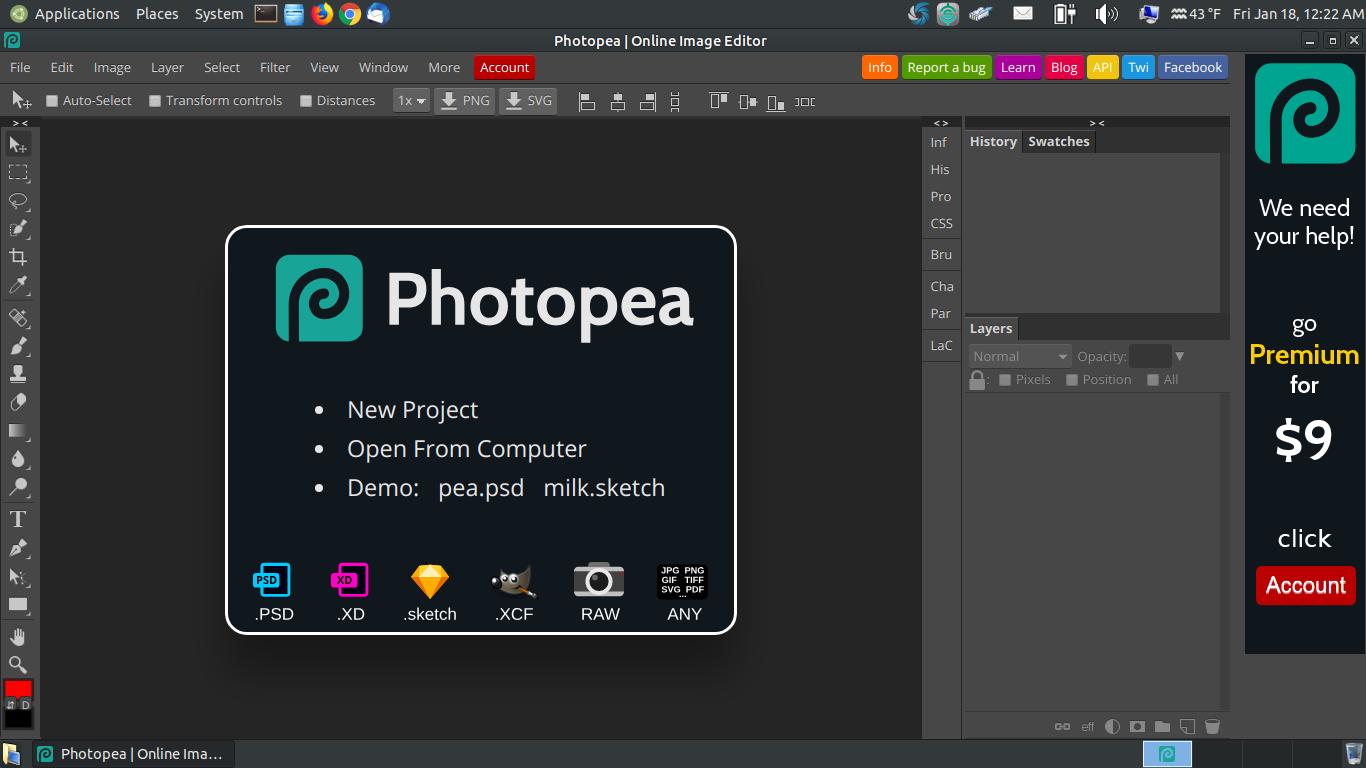
The Photopea interface looks familiar to people who have used Photoshop or another layered image editor. Tools sit on the left, panels appear on the right, and menus for files, images, layers, selections, filters, and views run across the top. This familiarity is a strength for experienced users, but a new user may see too many options at once.
Performance is closely tied to the device. Because the editor processes files locally, a strong CPU, enough RAM, a capable browser, and hardware acceleration make a noticeable difference. Large PSD files with many smart objects can slow down or cause a browser tab to become unstable. Saving versions regularly is important, especially during a long project.
Advertisements are the largest day-to-day weakness of the free experience. They do not remove editing features, but they reduce workspace and can distract the user. Premium creates a cleaner working area. Keyboard shortcuts, templates, cloud connections, and broad format support make Photopea productive once the user becomes comfortable with the interface.
Pros and Cons
What Works Well
Strong free editor with no required account
Excellent PSD opening and saving support
Works on Windows, Mac, Linux, Chromebook, tablets, and phones
Supports layers, masks, smart objects, vectors, filters, and typography
Files are processed locally during normal editing
Can be installed as a browser-based progressive web app
AI tools speed up background removal and object replacement
Broad file compatibility for designers and photographers
What Needs Improvement
Advertisements reduce the workspace in the free version
Interface can overwhelm complete beginners
Mobile editing is difficult on a small screen
Large files can strain browser memory and device performance
AI results still need manual checking and cleanup
Included AI usage is limited by account level
No full native desktop experience independent of a browser
Unsaved work can be lost when the tab closes or crashes
Frequently Asked Questions About Photopea (2026)
Photopea has a free version with the main editing tools, PSD support, exports, layers, masks, and many professional features. The free experience includes advertisements and lower AI allowances.
2. Do I need to log in to use Photopea?No. Basic editing does not require a login. An account is mainly useful for Premium access and synchronising preferences across devices.
3. Can I download Photopea as an app?Photopea can be installed as a progressive web app through a supported browser. It creates an app-like shortcut, but the editor still depends on the browser.
4. Does Photopea work offline?After Photopea has loaded, many editing functions can continue without an internet connection. Online AI tools, cloud access, advertisements, and some connected features may not work offline.
5. Can Photopea open and save PSD files?Yes. PSD is Photopea’s main project format, and the editor can both open and save layered PSD documents.
6. Does Photopea have AI tools?Yes. Photopea offers AI-assisted features such as background removal, Magic Replace, and generative editing. Usage allowances depend on the account.
7. Is Photopea safe to use?Normal file editing happens locally on the device. Users should still use the official editor, avoid unofficial APK files, protect connected cloud accounts, and save work securely.
8. Is Photopea good for beginners?A beginner can handle simple tasks quickly, but the full interface has many professional tools. Tutorials and regular practice make it easier to understand.
9. Can Photopea replace Photoshop?It can replace Photoshop for many everyday PSD edits, social graphics, mock-ups, resizing, and layered design tasks. Advanced professional workflows may still require specialised desktop software.
10. Why is Photopea slow on my device?Speed depends on browser memory, file size, layer count, processor performance, hardware acceleration, and other open tabs. Closing unused programs and working with smaller files can help.
11. Does Photopea add a watermark?Photopea does not normally add a watermark to exported work. Free users see advertisements in the editor, but their finished designs remain their own.
12. Can I use Photopea on my phone?Yes. It runs in mobile browsers, but detailed editing is easier on a tablet or computer with a larger screen and precise controls.
13. What happens if I close Photopea without saving?Unsaved changes can be lost because files are processed on the device. Save the project regularly as a PSD or another suitable format.
14. Is Photopea Premium worth it?Premium is most useful for frequent users who want to remove advertisements and receive a higher AI allowance. Occasional users may find the free version sufficient.
Icon polls Verdict
Photopea earns 3.5 out of 5 in the ICON POLLS 2026 review. It gives users an impressive collection of professional editing tools without requiring a large installation or an immediate payment. PSD compatibility, local file processing, broad format support, and a genuinely useful free version make it one of the easiest editors to recommend for quick and medium-sized projects.
The rating stops below four because the experience is not equally smooth for everyone. Advertisements reduce the working area, beginners face a learning curve, large projects depend on browser stability, and mobile editing remains uncomfortable. AI features are helpful, but they are not a replacement for careful retouching and quality control.
Our practical recommendation is to start with the free version, complete one real project, and test the same type of files you normally edit. Save regularly and inspect exports before publishing. Premium makes sense when advertisements, AI limits, or frequent daily use begin to interrupt the workflow.